

My Figma to Code Workflow
How I close the gap between design and production by directing AI tools to build what I design — and what I've learned doing it.
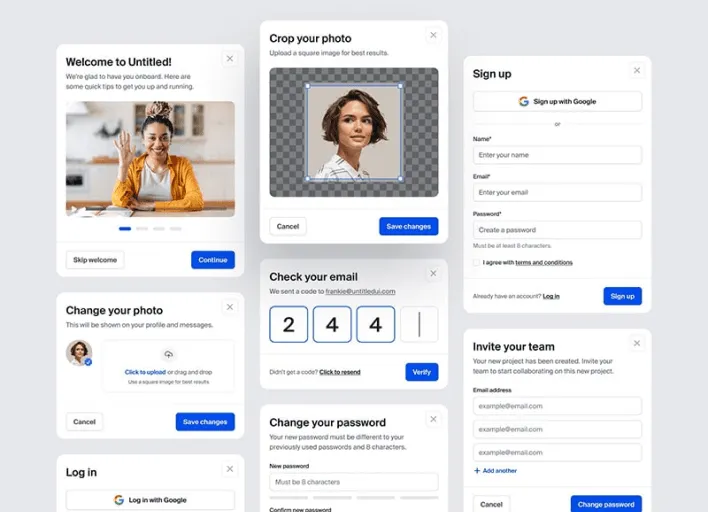
The gap most designers accept
There's a moment every designer knows: you finish a flow, hand it off, and then wait. Weeks later, what ships looks almost like what you designed. The padding is off, the hover state is missing, the copy got trimmed. Small things, but they add up — and they're yours, except they're not really yours anymore.
I decided early not to accept that gap. So I started building my own designs.
Not because I wanted to become an engineer. I don't write production-grade code from scratch. But I've learned to direct AI tools — Claude, Cursor, GitHub Copilot — to assemble what I design, following my specs closely enough that what goes live is actually what I intended.
What the workflow looks like
I design in Figma the same way I always did. Detailed components, real content, real states — not wireframes. Because I know I'll be building it, I design with more precision: I think about the hover state, the loading state, the empty state. I stop designing things that can't exist.
Then I move to the code side. I describe what I designed to the AI in plain language: the layout, the spacing, the interaction. I review what it generates, correct it, push back when it drifts. It's closer to directing a contractor than writing code yourself.
The result is a live component that matches the design. Not a screenshot — something real, in a browser, that you can click.
What it changes about design
The biggest shift isn't technical. It's that I design differently when I know I'll be the one making it real.
When there's no engineer waiting, there's no buffer between a bad design decision and the moment you discover it. A flow I can't build is a flow I haven't thought through. So I stop drawing pretty dead-ends and start designing things that actually work.
It also keeps me honest about complexity. If something is hard to describe to an AI, it's probably hard to explain to an engineer too. That's useful signal.
The tools I use
- Figma — still the design source of truth
- Claude — for reasoning through component structure and writing initial implementations
- Cursor — for working inside the codebase, editing and iterating
- Next.js + Tailwind — the stack I build on; predictable enough that AI tools generate usable output
None of these are magic. The quality of what comes out depends on the quality of what goes in — which is still a design skill, just applied differently.
What I'd tell other designers
You don't need to become an engineer to close the gap. You need to understand the medium well enough to direct someone (or something) working in it. That's a design skill. It's the same skill you use when you write a good brief, or give clear feedback on an implementation.
The handoff isn't disappearing. But the designer who can carry work past it — even a little further — will design differently, and better, because of it.
Salman Alfariesh
Product Designer specializing in web & mobile experiences